
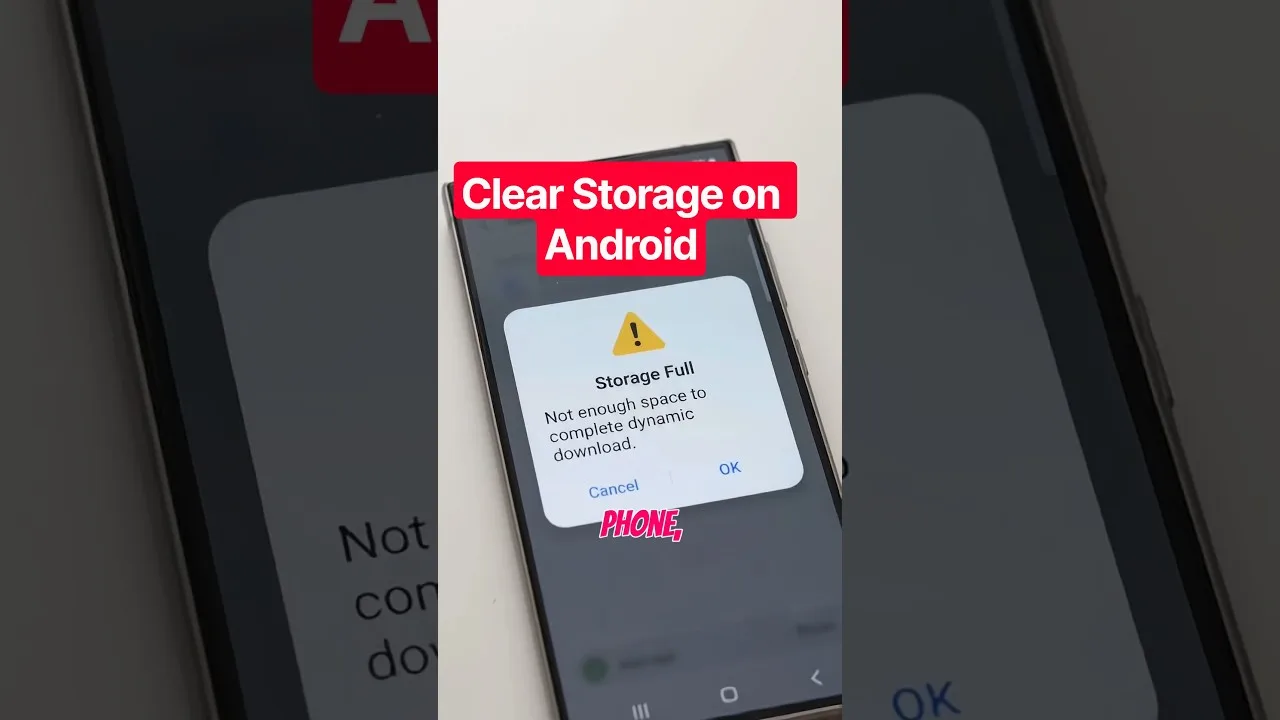
Months of viewing leave streaming apps carrying temporary files: thumbnails, partial downloads, playback buffers. In this OZ TV app, the cache normally helps — categories load faster because of it — but grown stale or bloated it produces the opposite: sluggish menus, broken images, and storage warnings. Clearing it is the standard reset, and done properly it costs nothing but seconds of reloading.
The skill is knowing what to clear. Android offers two very different buttons, Clear Cache and Clear Data, and the wrong one erases your settings. This guide separates them and finishes with keeping storage healthy.
Cache vs Data: Know the Difference
The cache holds disposable files the app can rebuild — image thumbnails, temporary stream data, working files of that kind. Clearing it is safe and reversible: the app fetches fresh copies as you browse, so the only cost is slightly slower loading the first time each section reopens.
App data is everything else: settings, favourites, sign-in state, preferences. Clearing it returns the app to a freshly installed state — a legitimate last resort for stubborn faults, never a first step. Cache is workbench clutter, harmless to sweep; data is the filing cabinet, emptied only deliberately.
How to Clear the Cache
Open Android Settings, go to Apps, find OZ TV, and open Storage. Tap Clear Cache — not Clear Data — and confirm. Seconds later you are done, with nothing to reconfigure. Return to the app and browse normally while sections repopulate their thumbnails.
If the app had been misbehaving — images failing, categories looking outdated — test now before doing anything else. Cache clearing resolves a large share of odd glitches, which is why it appears in nearly every routine, including our not working fixes.
Freeing Storage Beyond the Cache
If storage pressure is the real issue, the cache is one contributor among several. Browser downloads, stale APK files from earlier installs, and other apps' caches usually outweigh it; messaging apps are the silent giants, their years of chat media routinely passing 5 GB on family phones.
Android's storage screen ranks apps by size, exposing the biggest offenders at a glance. On genuinely tight devices, pair this tidy with the habits in our low-end phone guide: a gigabyte or two kept free improves everything the phone does.
How Often Should You Do This?
Monthly or two-monthly clearing, or whenever the app feels sluggish, is plenty. Daily clearing is counterproductive: the cache exists to speed things up, and forever emptying it forces re-downloads of data the app would have reused.
Treat storage warnings as a queue: cache first, forgotten downloads second, chat media third, unused apps fourth. Ten minutes with that checklist restores breathing room on nearly any device.
Final Thoughts
Clear Cache is your friend; Clear Data is the emergency option. Learn the difference, clear the cache when the app feels stale or storage runs low, and keep modest free space permanently. That is all the storage management OZ TV asks of you.