Tablets occupy streaming's sweet spot: larger and more immersive than a phone, lighter and simpler than a television installation. The OZ TV Android streaming app runs on Android tablets with the phone version's full feature set, but the bigger canvas changes the setup — quality can rise a level, two people can watch together comfortably, and the device often becomes a household's second screen.
This guide covers tablet installation specifics, the display and sound adjustments that matter, and the small habits that convert a general-purpose tablet into a dedicated viewing device.
Installing on a Tablet
Installation mirrors the phone: download the APK, allow installation from your browser or file manager when prompted, and open the app. Depending on the manufacturer, the permission prompt may sit in a slightly different settings menu, but the substance is identical.
On a shared family tablet, install under the main account so everyone can use it, and confirm the Android version is comfortably supported using our device compatibility notes, which treat tablets as their own category.
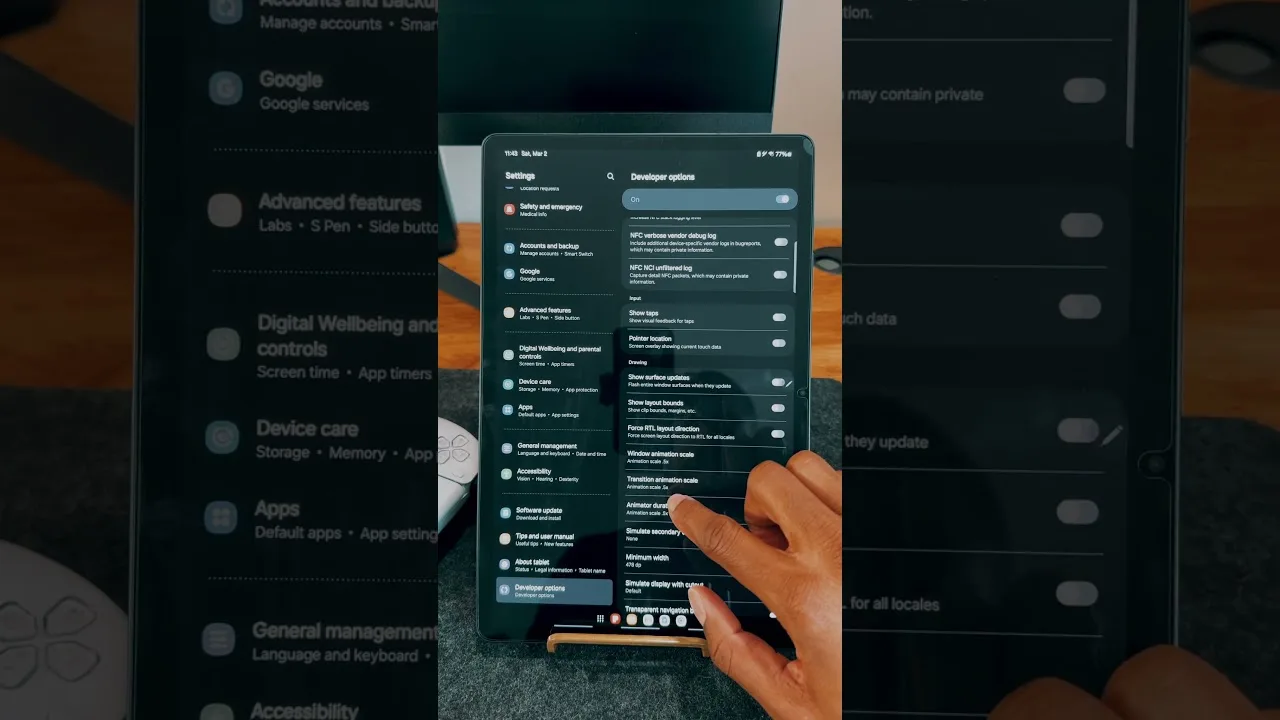
Display Settings for the Bigger Screen
Raise stream quality one level above your phone setting. On a ten-inch screen the extra detail is visible and worthwhile, and the added data is irrelevant on home Wi-Fi. Check the tablet's own display mode too: many ship with a vivid colour profile that oversaturates streamed video, where the natural preset usually flatters films.
Brightness strategy matters for battery and comfort. A tablet's large screen is its biggest power draw; moderate evening brightness with a warm tone is kinder to eyes and extends unplugged viewing. When two people share the screen, a stand facing it squarely to both viewers pays for itself immediately.
Sound: The Tablet Advantage
Tablet speakers are generally fuller than phone speakers, and many models carry dual speakers producing a genuine stereo effect in landscape. Prop the tablet so hands or a case flap do not cover them — the commonest cause of mysteriously muffled tablet audio.
A small Bluetooth speaker transforms shared film viewing: pair once and the tablet reconnects automatically. For personal viewing, earbuds plus a tablet are many travellers' favourite cinema, and the tablet can hand off to the television entirely using the methods in our Chromecast guide.
Making the Tablet a Viewing Device
If the tablet mostly streams, organise it that way: viewing apps on the home screen, Do Not Disturb scheduled for viewing hours, and a stand or folio case holding a comfortable angle on table or bed.
Tablets shine when travelling — the screen beats a phone on trains and in hotel rooms, battery life spans long journeys, and the device doubles as reading hardware between sessions. For longevity, avoid leaving it plugged at full charge permanently, and remove thick cases during long sessions if the back grows hot.
Final Thoughts
A tablet given the right quality, sound, and organisation is arguably the pleasantest way to watch OZ TV: personal like a phone, cinematic like a small television. Ten minutes of setup turns a general tablet into the device everyone reaches for first.