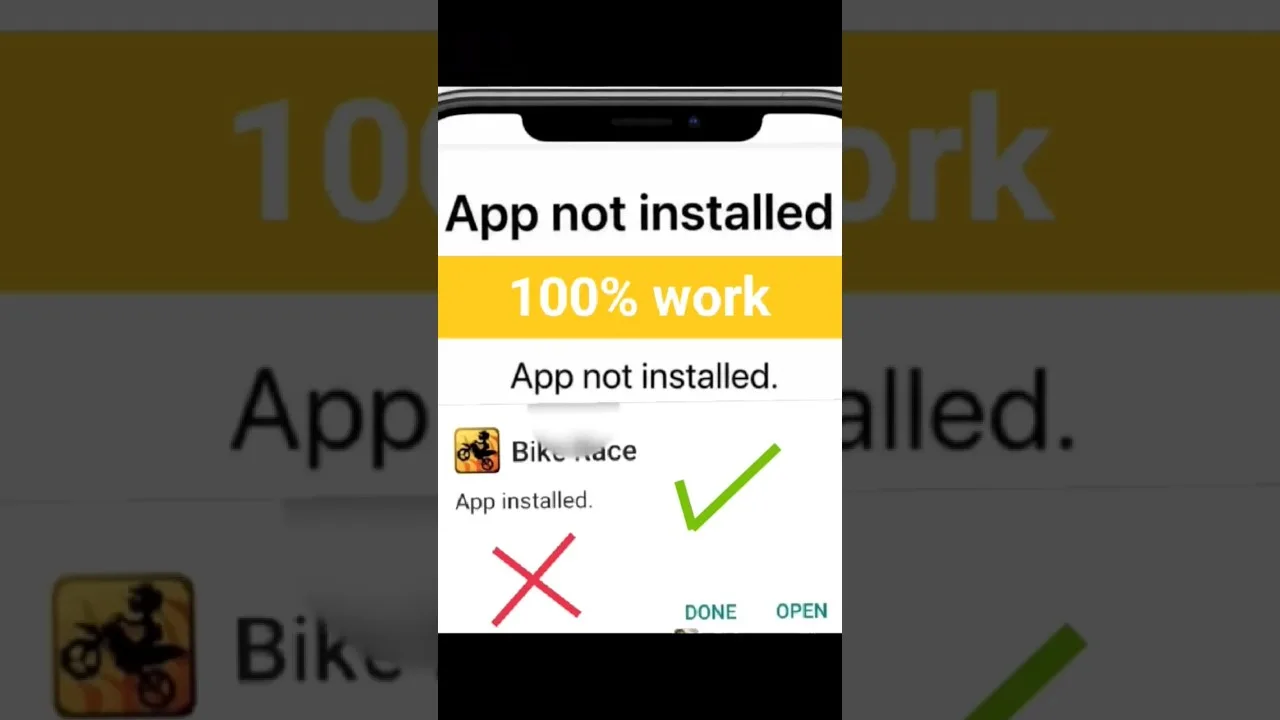
Most streaming trouble begins before the app opens: the installation itself fails. Android's messages are famously unhelpful — 'App not installed' explains nothing — yet each common failure has a recognisable cause and a reliable remedy. This guide decodes the errors met when installing OZ TV latest version builds and gives the shortest route to a working install.
Take the errors in the order they usually appear. If your app installs fine but misbehaves afterwards, the final section points to the right troubleshooting guide.
'App Not Installed': The Catch-All Error
This message usually means one of three things: the file is incomplete or corrupted, an older conflicting version is already present, or storage ran out mid-install. Start with the simplest checks — confirm a few hundred megabytes are free — then download again from the download page in case the first copy was cut short.
If an earlier version exists, update over it rather than installing a second copy. If Android still refuses, uninstall the old version and install fresh. Beware duplicate near-identical files in the Downloads folder: installing an older incomplete copy is a classic cause of this exact message.
'Parse Error': The File Cannot Be Read
A parse error means Android cannot make sense of the file at all. The commonest cause is an interrupted download that looks complete but is missing its ending; the file size will be smaller than expected. Re-downloading on a stable connection repairs the large majority of parse errors.
The second cause is a true mismatch — a build intended for a much newer Android than the phone runs. Check the compatibility notes for your device class; if your Android version is very old, that is the problem to solve first.
'Blocked by Play Protect' and Permission Prompts
Android scans apps installed from outside the Play Store and may show a warning screen — a standard checkpoint for every sideloaded app, not a verdict that the file is harmful. Read it calmly: if you downloaded from the source you intended and it names the right app, you may proceed; if it names something unexpected, stop and re-download.
The permission to install from unknown sources is granted per app — your browser or file manager needs it individually. Our full installation guide shows exactly where the setting lives on current Android versions.
Install Succeeds but the App Will Not Open
When installation completes but the first launch crashes, suspect leftover data from a previous install or a device short on memory. Clear the app's cache in Android settings, restart the phone, and try again — many first-launch crashes never return after one clean reboot.
An app opening to a permanently blank screen deserves the same treatment plus a full minute of patience, since first-launch setup on a slow device can look frozen when it is not. If the app opens but channels misbehave, see our not working guide.
Final Thoughts
Installation errors feel alarming but are almost always mechanical: a damaged file, a missing permission, low storage, or a version conflict. Re-download cleanly, grant the right permission to the right app, keep storage headroom. In doubt, restart from a fresh download — the single fix resolving most cases.